Add Your Vehicle and Get It Booking-Ready
Add your vehicle details, upload a rig photo, and record what your setup needs before booking.
Anna @ Vanly ·
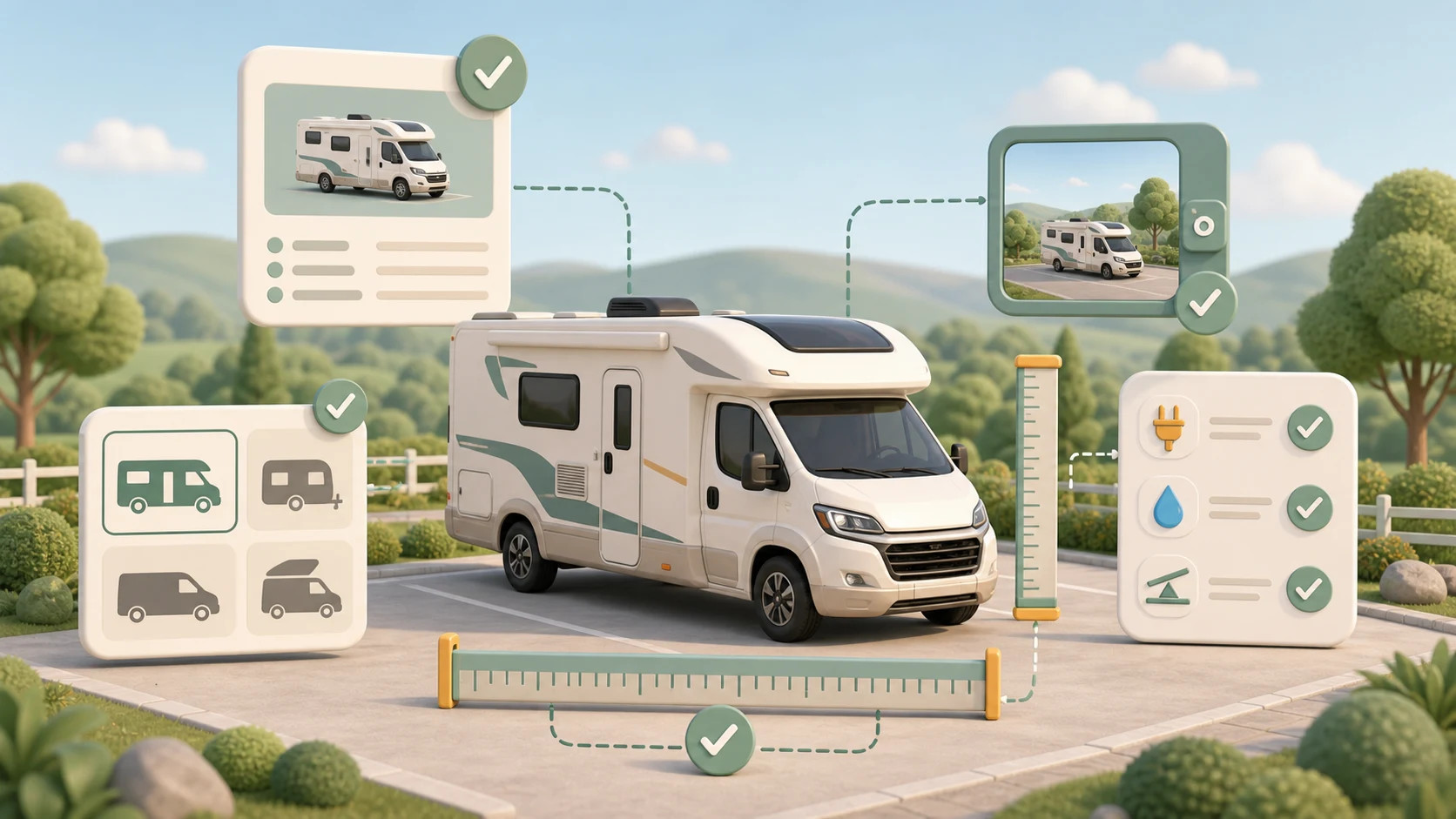
Vanly hosts need accurate information about the vehicle arriving at their property. Add each vehicle you travel with once, keep its details updated, and select a default vehicle to make future bookings easier.
Before you begin
A signed-in Vanly guest account
Your vehicle’s year, make, model, length, and licence plate
A clear photo of your rig
Information about your power, utility, and parking needs
Step 1: Open Vehicles and add a vehicle
Open Settings and select Your Vehicles.
If you have not added a vehicle yet, Vanly will display the vehicle form automatically.
If vehicles are already saved, select Add vehicle to create another one.
Add every vehicle or rig you may use for a Vanly stay. You can choose one as your default after it has been saved.
Tip: Have your vehicle information and rig photo ready before starting the form.
Important: Only add vehicles you are authorized to use for a Vanly booking.
Step 2: Enter your vehicle details
Enter the vehicle information requested by Vanly:
Select the vehicle’s Year.
Search for or enter the Make.
Search for or enter the Model.
Select the vehicle’s total Length (ft).
Enter the Licence plate.
If the make or model does not appear in the available options, enter it manually.
Review the information carefully before continuing. The vehicle’s size and identity should match the rig that will arrive for the booking.
Tip: Enter the complete vehicle length so hosts have an accurate understanding of the space your rig requires.
Important: Inaccurate vehicle details can create problems when the vehicle arrives at the listing.
Step 3: Upload the required rig photo
In the Rig photo section, select Upload image.
Choose a clear and current photo that shows the vehicle or rig you will use for your stay.
Vanly accepts:
JPG
PNG
WEBP
HEIC
The image must be no larger than 10 MB.
After uploading, confirm that the correct photo appears in the preview. Select Remove if you need to choose a different image.
Complete the remaining sections using information that accurately describes your vehicle.
Utilities
Select the utilities and onboard features that apply to your rig, such as water tanks, sewer or water hookups, solar panels, a generator, or battery power.
Power Requirements
Choose the hookup your vehicle needs:
None
Standard outlet
30A RV hookup
50A RV hookup
Then choose the expected power use:
Light: Lights or device charging
Medium: Refrigerator or small appliances
High: Air conditioner, heater, or microwave
Parking Setup
Select any requirements that hosts should understand:
Slide-outs
Awning
Leveling jacks or blocks
Level parking
Pull-through access
Extra side clearance
Review the information and select Add new vehicle.
After the vehicle is saved, use its available controls to:
Edit the vehicle information
Set as Default for future bookings
Delete a vehicle you no longer use
Tip: Use a well-lit photo that shows the complete vehicle without unnecessary objects blocking it.
Important: A rig photo is required for every vehicle. A vehicle without a rig photo cannot be used for booking.
You’re ready
Your vehicle is now saved and ready to select during a Vanly booking. Return to Vehicles whenever you need to update its information, replace the rig photo, choose a different default vehicle, or add another vehicle.